The ACBUY QC Finder Workflow: Filter Sellers Like a Pro Buyer
Every experienced agent buyer builds a personal filter for marketplace sellers. The ACBUY QC Finder is the ultimate tool that makes this filtering process incredibly fast. Instead of reading dozens of outdated online reviews, you can compare real Quality Control (QC) photos from actual buyers. This is exactly how we run the finder workflow before submitting every single clothing or sneaker order.
Learning how to utilize this search database properly will protect your budget and ensure you only spend your hard-earned money on top-tier products. Let’s dive deep into how the indexing system works and how you can optimize your shopping strategy.
What the ACBUY QC Finder Actually Indexes
The search index database pulls together buyer-submitted QC albums that are automatically keyed by the original seller marketplace URL and specific batch tiers.
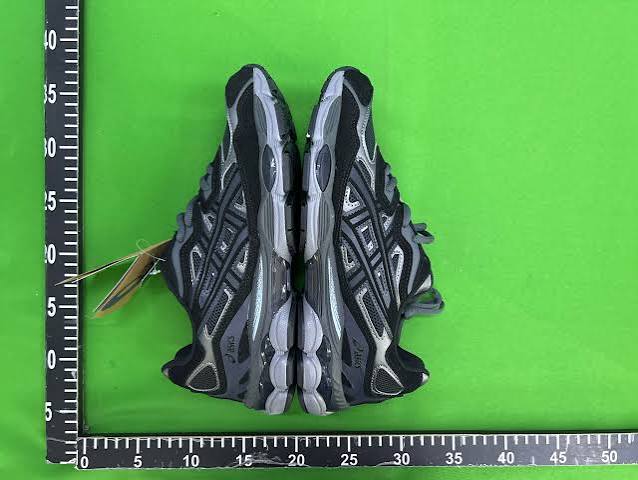
If you are eyeing a specific Jordan 1 sneaker from a popular Weidian shop, you can use the ACBUY QC Finder to view the last 20 buyer QC albums generated for that exact product stock-keeping unit (SKU). This allows you to inspect critical details before international shipping:
-
Color Accuracy: Check the fabric and materials under standard warehouse lighting.
-
Stitching Quality: Ensure there are no loose threads or crooked lines on the panels.
-
Box Condition: Evaluate whether the original packaging is sturdy or completely destroyed.
-
Measurement Tags: Verify the actual physical dimensions against standard size charts.
The 4-Filter Workflow for Smart Buyers
To get the most out of the ACBUY QC Finder, we highly recommend following this strict 4-step checking workflow before finalizing any transaction:
-
Batch Tier Match: If your curated spreadsheet says an item is a “GP batch”, only look at QC entries tagged as GP. Looking at a completely different batch version from three months ago tells you almost nothing about the product you just ordered.
-
Sample Size Check: Always make sure the available sample size is greater than or equal to 5. Fewer than five distinct QC albums is simply not enough statistical signal to make a safe purchase. Move on or ask the community if you need more reference points.
-
Failure Pattern Analysis: Ignore completely isolated factory defects. Instead, look closely for repeating structural flaws. Seeing two out of eight QC albums showing a loose insole hint is a much worse sign than one single album showing a torn cardboard box.
-
Recency Verification: Factory batches drift in quality over time. A stellar product record from 2024 can easily rot by 2026. Always weight the last 60 days of uploaded warehouse photos much more heavily than older historical records.
How the Finder Pairs With Your Spreadsheet
The standard acbuy spreadsheet gives you the initial product shortlist, while the ACBUY QC Finder confirms the quality of that shortlist. Do not skip either half of this system.
New buyers who only use the product spreadsheets often ship blindly without checking real photos. Conversely, buyers who only trawl through random QC albums drown in endless configuration options. Combining both tools together is what produces the perfect “clean first order” outcome for your international haul.
If you are buying from a category we have already thoroughly curated on our main spreadsheets hub, you can sometimes skip the manual database sweep. That is the whole point of using a trusted curated sheet: someone else has already run the verification workflow for you.
Frequently Asked Questions About QC Inspection
Can I request extra photos through the ACBUY QC Finder?
No, the finder tool is a public database for viewing existing warehouse photos. If you want specific close-up shots of an item you already purchased, you must order detailed photo services directly through your personal user dashboard.
Why can’t I find my specific item link in the database?
If a seller link yields zero results, it means no other users have submitted that exact URL to the warehouse recently, or the product is from a brand-new store. In these cases, rely on store return rates and community reputation.
You’re ready to shop. Bookmark the official ACBUY guide homepage to keep both of these powerful automation tools just one click away!